Opening registration
Registration follows the dates you configure. Once the season is public and its setup is ready, there is no separate registration publish switch to remember.
Registration & waitlists
Give families a clear path from choosing a division to claiming a spot, while your board keeps control of capacity.
From setup to game day
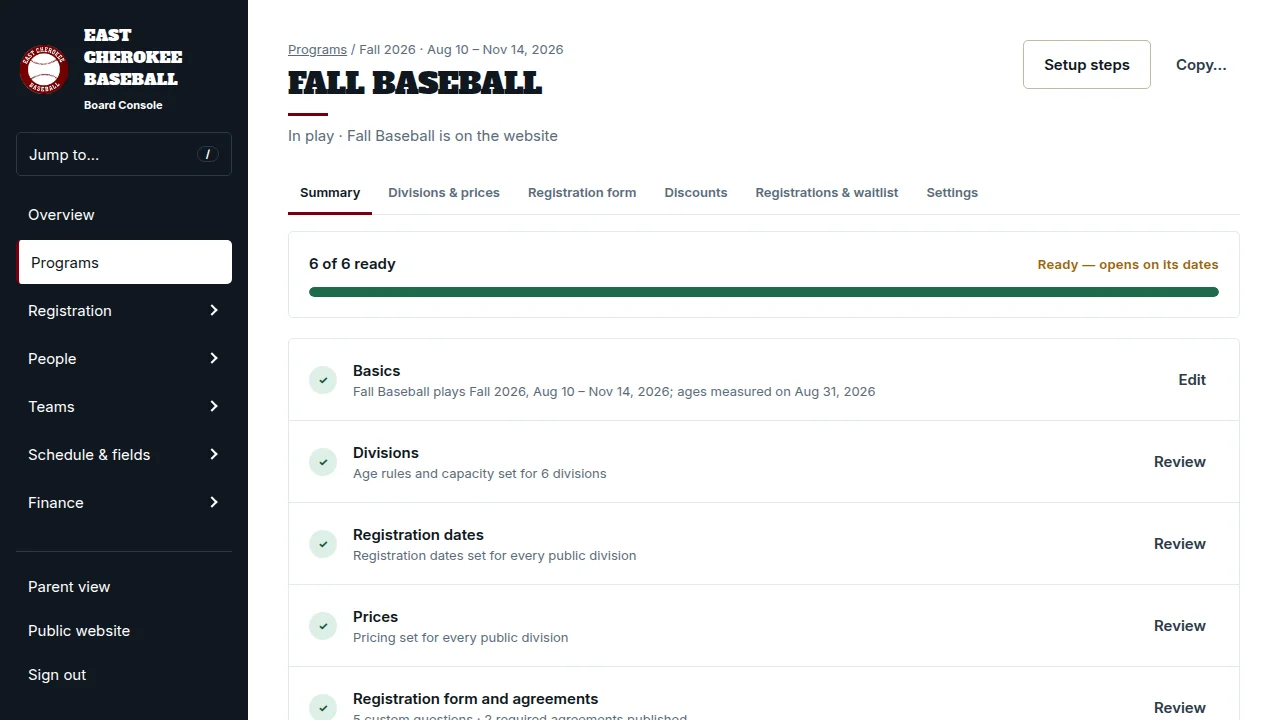
Start with your season and divisions, then set age rules, capacity, opening and closing dates, and fees. The program page separates this work into six steps, so a volunteer can finish one part and return to the next. The readiness checklist points out missing setup before registration opens.
A parent adds their children and sees the public divisions each child fits. The page explains the age it calculated and provides a play-up or play-down request route. Families answer registration questions, sign required agreements, and can register more than one child in the same checkout.
A place is held while a family completes checkout, so two families cannot claim the last spot. When a division fills, the waitlist provides the next route. When space becomes available, time-limited offers let waiting families accept a place; the board can review exceptions from the console.
The family’s side
The same family can have a registration in progress for one child and a waitlist place for another. Both are visible when the parent returns.
In this demo, Mason can resume registration in 10U Rec, while Ella’s 8U Coach Pitch place is waitlisted. Each card states the age cutoff, where that child’s registration stands, and the route to request a different division.
Choose, details, agreements, then review and pay: the progress rail keeps the remaining steps visible.
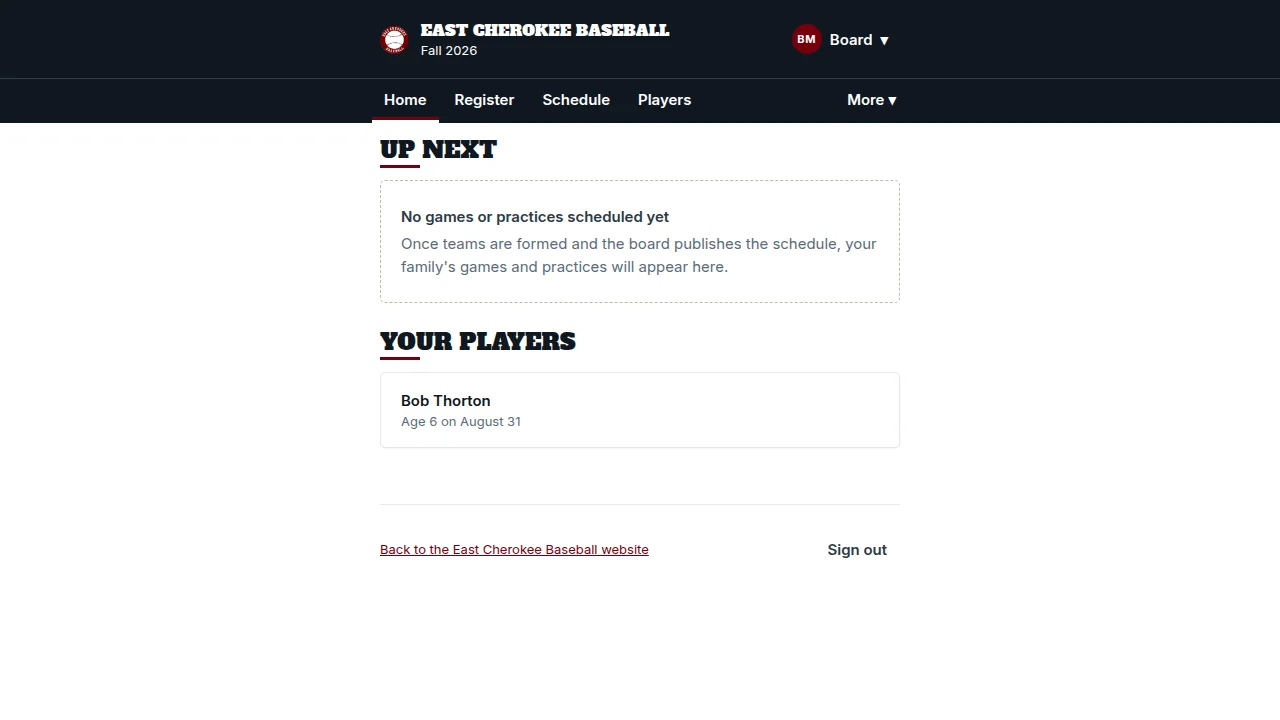
Registration follows the dates you configure. Once the season is public and its setup is ready, there is no separate registration publish switch to remember.
Keep reusable questions and required agreements with the league. Agreement acceptance is recorded for the season and the published version the family signed.
An ineligible division stays out of the picker, but the family still gets an explanation and the exception-request route. A payment decline keeps the cart available for another attempt.
Ask us to walk through your age groups, registration dates, and division caps.